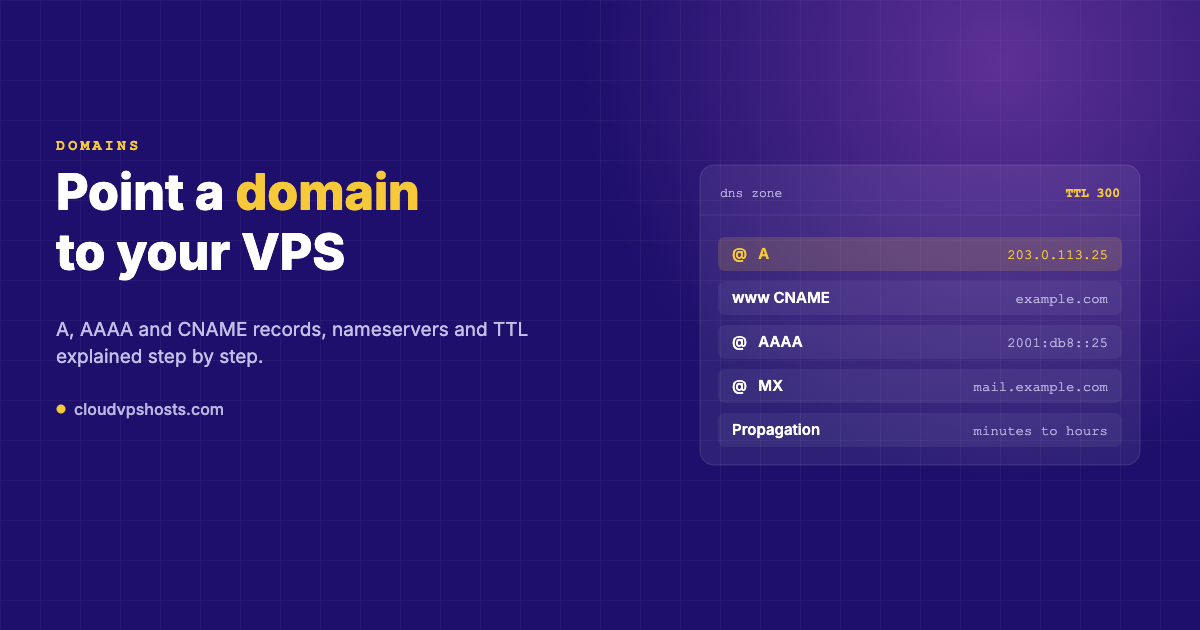
How to Point a Domain Name to Your VPS (A Records, DNS and TTL)
Create A records for your domain, check that DNS has updated, configure Nginx, Apache or IIS for the domain and fix the most common DNS problems.
To point a domain name to your VPS, log in to the company where the domain is registered, open its DNS settings and create an A record for @ and another for www, both set to your server’s IP address. Most changes start working within an hour. After that, you tell your web server which domain it should answer for.
That is the short version. Below are both methods (A records and nameservers), the exact records to create, how to check that DNS has updated, and fixes for the problems people run into most often.
What do you need before you start?
- A registered domain name and the login for the registrar or DNS provider that manages it.
- Your server’s public IPv4 address. On most hosting control panels it is shown on the server’s overview page. You can also run
curl -4 ifconfig.meon the server itself. - If your server also has an IPv6 address, note that too.
- A website or app already running on the server, or at least a web server such as Nginx, Apache or IIS installed. Our guide on installing Nginx on Ubuntu covers this.
Should you change A records or nameservers?
There are two ways to connect a domain to a server. For a single VPS, changing A records is simpler and keeps your email and other records where they already are.
| Edit A records | Change nameservers | |
|---|---|---|
| What you change | One or two records at your current DNS provider | The whole DNS zone moves to another provider |
| Existing email and other records | Stay as they are | Must be recreated at the new provider |
| Typical time to take effect | Minutes to a few hours, depending on TTL | Often a few hours, can take up to 48 hours |
| Best for | Pointing one site at one server | Using a CDN or DNS service such as Cloudflare, or running your own DNS |
If you are not sure, edit the A records. You can always move nameservers later.
Step 1: Create the A records
Open the DNS management page for your domain. Registrars call it different things: DNS Management, DNS Zone, Advanced DNS or Manage DNS. Delete any existing A record for @ that points to a parking page, then add these records:
| Type | Name / Host | Value / Points to | TTL |
|---|---|---|---|
| A | @ | 203.0.113.10 (your server IP) | 3600 |
| A | www | 203.0.113.10 (your server IP) | 3600 |
| AAAA | @ | Your IPv6 address (only if the server has one) | 3600 |
| AAAA | www | Your IPv6 address (only if the server has one) | 3600 |
@ stands for the bare domain, such as example.com. Some panels want you to leave the name field empty instead of typing @. You can use a CNAME record for www that points to example.com instead of a second A record. Both work.
Only add AAAA records if IPv6 is actually configured and your web server listens on it. A wrong AAAA record is one of the most common reasons a site loads for some visitors and not for others.
Step 2: Lower the TTL first if you are moving a live site
TTL (time to live) tells resolvers how long to cache a record, in seconds. If the domain already points to an old server, set the TTL on the existing records to 300 a day before the move. When you switch the IP, visitors pick up the change within about five minutes. Raise it back to 3600 once everything works.
Step 3: Check that DNS has updated
From your own computer, ask a public resolver what the domain now points to. On Linux or macOS:
dig +short example.com A @1.1.1.1
dig +short www.example.com A @8.8.8.8
On Windows, in PowerShell or Command Prompt:
nslookup example.com 1.1.1.1When both commands return your server’s IP, DNS is done. If you still see the old address, wait for the old TTL to run out. Your own computer may also cache results, so on Windows run ipconfig /flushdns before testing again.
Step 4: Tell your web server about the domain
DNS only sends visitors to the right machine. The web server still has to know which site to show for that name.
Nginx: set server_name in your site’s server block, then test and reload.
server {
    listen 80;
    server_name example.com www.example.com;
    root /var/www/example.com;
}
sudo nginx -t && sudo systemctl reload nginxApache: set ServerName and ServerAlias in the virtual host, then reload.
<VirtualHost *:80>
    ServerName example.com
    ServerAlias www.example.com
    DocumentRoot /var/www/example.com
</VirtualHost>
sudo apachectl configtest && sudo systemctl reload apache2IIS on Windows Server: in IIS Manager, select the site, open Bindings and add an http binding on port 80 for each host name (example.com and www.example.com).
Also make sure port 80 and port 443 are open in the server firewall. On Ubuntu with UFW that is sudo ufw allow 80,443/tcp.
Step 5: Add HTTPS
Once the domain opens your site over plain http, add an SSL certificate so browsers stop showing “Not secure”. Certificate authorities check DNS during validation, so this step only works after the A records are live. If you are not sure which type of certificate you need, read DV vs OV vs EV SSL certificates. For setup, see the guides for Nginx, Apache and IIS.
Common problems and how to fix them
The domain still shows the registrar’s parking page
An old A record or a URL forwarding rule is still active. Delete the parking A record and turn off any “forwarding” or “redirect” option in the registrar panel.
example.com works but www.example.com does not
The www record is missing, or the web server does not list www.example.com as a server name or alias. Fix whichever one is missing.
DNS points to the right IP but the browser times out
The server firewall, or a firewall in your provider’s panel, is blocking port 80 or 443. Also check that the web server is running with systemctl status nginx or systemctl status apache2.
Changes are not showing after the nameserver switch
Nameserver changes go through the registry for your domain extension and can take up to 48 hours. Check the nameservers with dig NS example.com +short. Remember that the records must exist at the new DNS provider before you switch.
Email stopped working after moving DNS
The MX, SPF (TXT) and DKIM records were not copied to the new DNS provider. Copy every record from the old zone before changing nameservers.
Before you register a domain
If you do not have a domain yet, compare the renewal price, not just the first-year offer. Many registrars advertise a low first year and charge two or three times more on renewal. Our domain price list shows the registration, transfer and renewal price for each extension side by side. You can also search for an available domain and manage its DNS from the same account as your server.
Domains, SSL and VPN in one account
If you are setting up a new site on a VPS, these are usually the next things on the list:
- Register a new domain or transfer one you already own, then point it at your server with the steps above. Check availability first with the domain search.
- SSL certificates from RapidSSL, GeoTrust and DigiCert, covering DV, OV, EV and Wildcard.
- NordVPN to keep your own connection private when you manage the server from public Wi-Fi.
Frequently asked questions
How long does it take for a domain to point to a new server?
A new A record usually works within minutes to an hour. If you are replacing an existing record, it can take as long as that record’s old TTL. Nameserver changes can take up to 48 hours.
Can I point one domain to two servers?
You can add two A records with different IPs and resolvers will spread visitors between them, but there is no health checking. For real failover, use a load balancer or a DNS service with health checks.
Can several domains point to the same VPS?
Yes. Point each domain’s A records to the same IP and create a separate server block or virtual host for each one. The web server uses the host name to decide which site to show.
Do I need a dedicated IP for each website?
No. Name-based virtual hosting and SNI let many sites, including HTTPS sites, share a single IP address.
Should I use the domain or the IP in my web server configuration?
Use the domain names. Configuring the IP alone means any domain pointed at your server, including ones you do not own, would show your site.