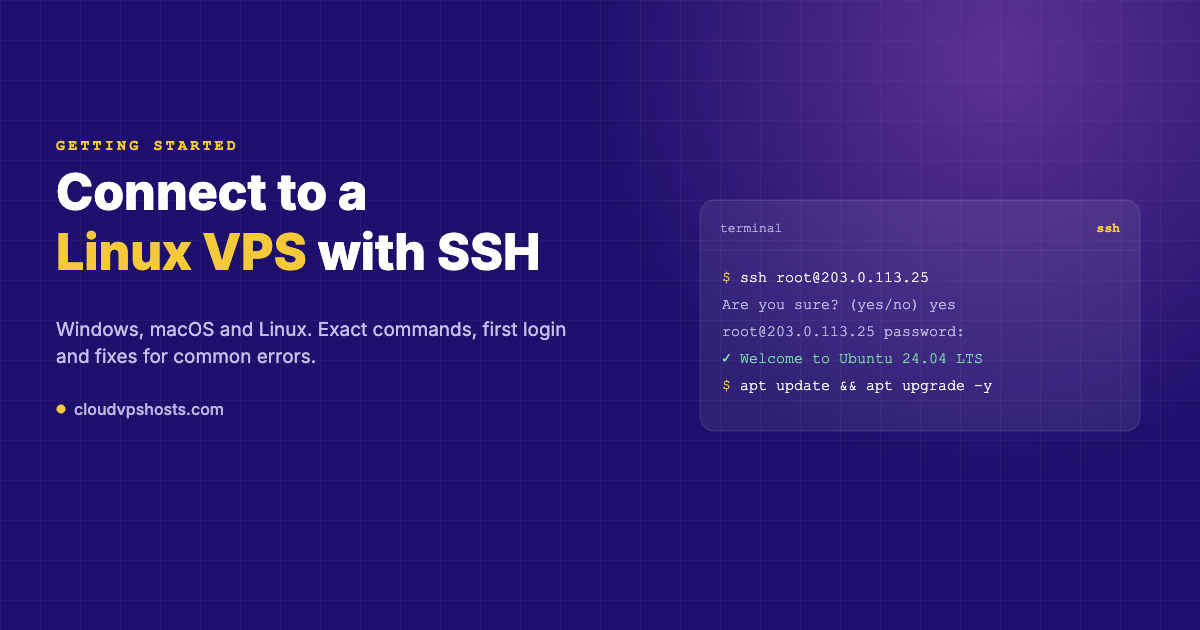
How to Connect to a Linux VPS with SSH (Windows, macOS and Linux)
Step by step: open a terminal, run ssh root@your-ip, accept the host key and log in. Works from Windows 10/11, macOS and Linux.
To connect to a Linux VPS with SSH, open a terminal and run ssh root@YOUR_SERVER_IP, type yes to accept the host key the first time, then enter the root password from your welcome email. Windows 10 and 11, macOS and every Linux desktop ship with an SSH client, so there is nothing to install.
This guide covers the exact steps on each system, what to check if the connection fails, and what to do in the first few minutes after you log in.
What do you need before you connect?
You need three things, all of which are in the welcome email sent when your server is provisioned:
- Server IP address, for example 203.0.113.25
- Username, usually
root - Password or the SSH key you added at checkout
SSH listens on port 22 by default. If you or a script changed the port, you will need that number too.
How do I connect from Windows 10 or 11?
Windows has a built-in OpenSSH client. Open Windows Terminal or PowerShell and run:
ssh root@203.0.113.25The first time, Windows shows the server’s fingerprint and asks if you want to continue. Type yes and press Enter, then paste your password. The cursor won’t move while you type the password. That is normal.
If you prefer a graphical tool, PuTTY still works well. Put the IP in Host Name, keep port 22, choose SSH and click Open.
How do I connect from macOS or Linux?
Open Terminal and use the same command:
ssh root@203.0.113.25If SSH runs on a custom port, add -p:
ssh -p 2222 root@203.0.113.25To skip typing the IP every time, add an entry to ~/.ssh/config:
Host myvps
    HostName 203.0.113.25
    User root
    Port 22
After that, ssh myvps is enough.
Why is my SSH connection failing?
| Error | Likely cause | Fix |
|---|---|---|
| Connection timed out | Wrong IP, server still booting, or a firewall blocking port 22 | Check the IP, wait a few minutes after provisioning, review firewall rules |
| Connection refused | SSH service stopped or listening on another port | Use the server console, or ask support, and run systemctl status ssh |
| Permission denied | Wrong password or key, or root login disabled | Copy the password again without spaces, or reset it from the panel |
| REMOTE HOST IDENTIFICATION HAS CHANGED | The server was reinstalled and has a new host key | Run ssh-keygen -R 203.0.113.25 and connect again |
The host key warning is worth a second look. After a reinstall it is expected. If you didn’t reinstall anything, stop and check with support before you accept the new key.
What should I do right after logging in?
Three quick jobs make a fresh server much safer:
- Update packages:
apt update && apt upgrade -yon Ubuntu or Debian,dnf upgrade -yon AlmaLinux or Rocky. - Change the root password with
passwd, or better, switch to key-only login. Our guide on setting up an SSH key walks through it. - Create a normal user with sudo rights and work from that account. The initial server setup guide for Ubuntu has the commands.
If you don’t have a server yet, a KVM Linux VPS with Ubuntu, Debian, AlmaLinux or Rocky is usually ready within 5 to 10 minutes of payment, with full root SSH access.
Frequently asked questions
Can I use SSH from my phone?
Yes. Apps such as Termius on Android and iOS support passwords and keys. It is handy for restarting a service, but a laptop is more comfortable for real work.
Is SSH safe over public Wi-Fi?
The SSH session itself is encrypted. The bigger risk is a weak root password, so move to key login and turn off password authentication once your key works.
What is the difference between SSH and SFTP?
SFTP runs over the same SSH connection and is used for file transfers. Tools like FileZilla or WinSCP accept the same IP, username and password.
I lost my root password. What now?
Open the server in your client area and use the password reset option if it is shown, or reinstall if the server holds nothing important. If neither is available, open a support ticket.
Next step: secure your new server
Once you can log in, set up key-based login and a firewall before you install anything else. Need a server to practise on? Compare our Linux VPS plans or the faster SSD VPS range.